Mapping Tool
The Mapping Tool is where examples of current provision and gaps in provision are recorded across all five strands and three levels of the Balanced System (universal, targeted and specialist).
How to contribute to The Balanced System® online tool
Better Communication CIC will create an account for you. You will receive an automated email with your password.
Go to the log in screen to log in using your email address and password.

Read through the Terms of Use and agree to proceed.

Accessing the Mapping Tool
Enter the Mapping Tool via your Dashboard using:
- the drop down menu
or
- by clicking on the Mapping Tool further down the screen
This image shows how to access the Mapping Tool from the Contributors Dashboard:

Introduction to the mapping tool
When you have accessed the Mapping Tool, read the introduction in the speech bubble at the top of the screen.
You can navigate between the strands and levels using the tabs:
- Strands: Family Support; Environment; Workforce; Identification; Intervention
- Levels: Universal; Targeted; Specialist
You will see the Balanced System outcome that corresponds to the highlighted strand and level.
This image shows the Mapping Tool overview screen:

Linking provisions and outcomes
Review the outcomes that correspond to each:
- Strand: Family Support; Environment; Workforce; Identification; Intervention
and
- Level: Universal; Targeted; Specialist
This image shows the outcome displayed when the Environment strand and Targeted level are selected:

Adding a Provision or Gap
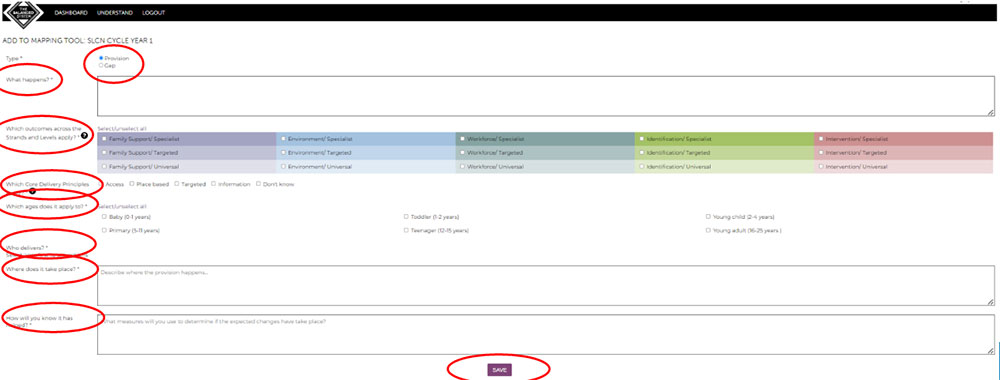
When you are adding a new provision or gap:
- Select whether it is a Provision or Gap
- Describe what happens
- Tick the strand and level outcomes that apply (boxes will appear for expected changes in each of the strands selected) - click the help button to access the Integrated Solution Tool to help choose the appropriate strands and levels
- Tick the core delivery principles that apply - click the help button to show guidance for this question
- Tick all ages that apply - once ages have been selected, options for who delivers will be displayed
- Tick who delivers
- Describe where it takes place
- Enter what changes you expect as a result for each of the selected strands
- Record how you will know it has helped - this might include child feedback, parent views or staff experiences about what has changed and how it has helped
- Complete any other fields as required
- Press Save
This image shows the add provision or gap screen: